
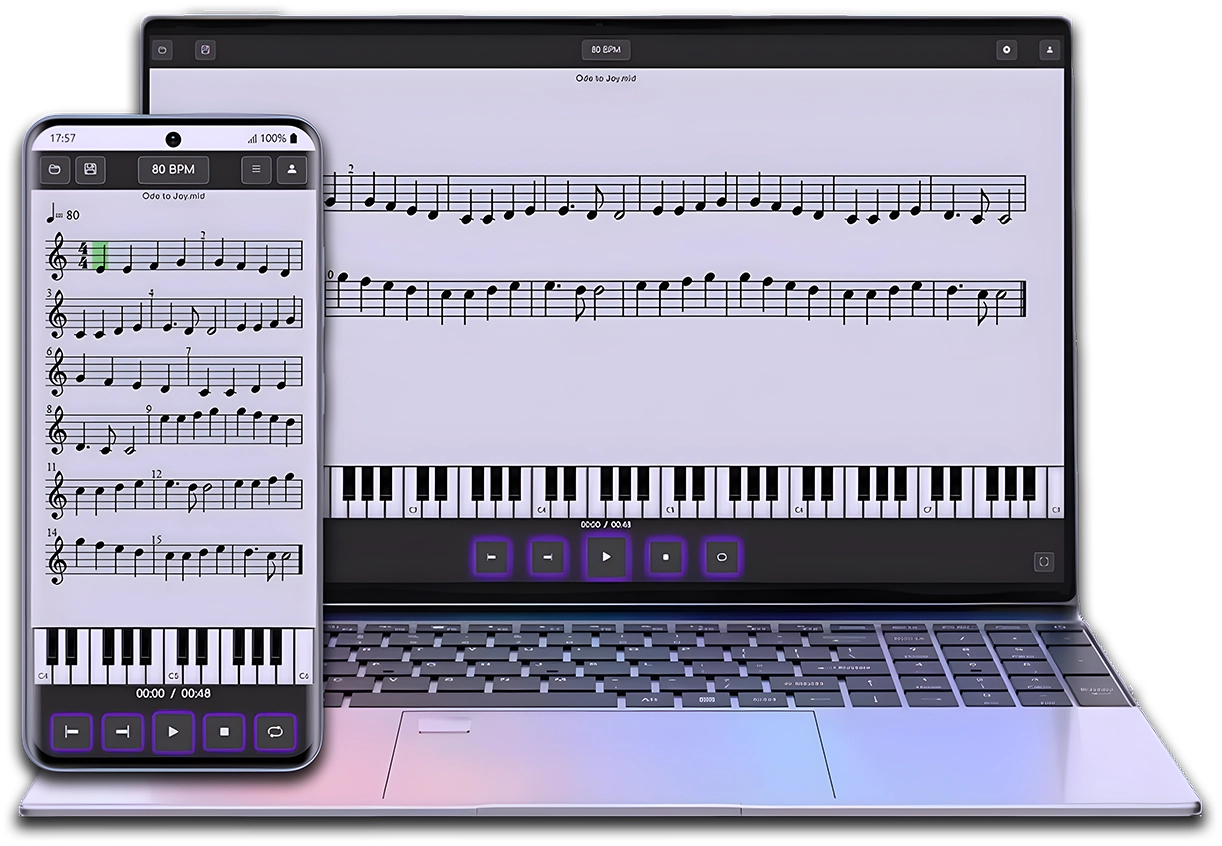
MIDI & MusicXML Player
Now that you already know MuseScore, practise your sheet music easily with the Clave de Mi Player.
After creating your score in MuseScore, open it in MIDI & MusicXML Player to listen to it, study, and practise at your own pace from your browser or mobile.
In this lesson of the MuseTube course you will learn to master two fundamental MuseScore tools for score playback: the built-in playback controls and the mixer. We’ll see how to control tempo, repeats, the metronome, loop playback, as well as manage volume, effects, and channels from the mixer. This class serves as the foundation for the next video, where we’ll explore virtual instruments.
▶️ MuseScore built-in playback controls
The playback controls are located at the top of the window. They let you control score playback with buttons such as:
- Play: play from the selected note (shortcut: space)
- Go to start: return to bar 1
- Loop playback: enable a custom range
The gear button offers additional options:
- MIDI input: to use keyboards
- Play repeats: enables barline repeats
- Play chord symbols: lets you choose whether to hear chord symbols
- Scroll score: visually follows playback
The panel also shows:
- Elapsed time
- Measure number and internal beat (e.g., 3.4 = measure 3, beat 4)
- Current tempo (default: quarter note = 120)
⏯️ Loop playback
Select a note and click “Set loop In point”; then select another note and click “Set loop Out point”. When you press Play, MuseScore will play only that passage. You can exit the loop by turning the option off.
🎚️ Real-time tempo control
Click the player’s “six dots” to expand advanced options. Here you can:
- Manually drag the playback position
- Adjust the relative tempo (100% by default)
If the score is marked “quarter note = 80”, then that will be 100%. You can change this value to speed up or slow down playback.
🧠 Playback by instrument
To start playback from a specific point, click a note and press Play. If you want to play only one instrument (for example, clarinet), click on the measure, and MuseScore will activate only that channel.
🕒 Metronome
Turn on the metronome to hear clicks during playback. Its behavior depends on the tempo:
- In simple meters (4/4): 4 clicks per measure
- In compound meters (6/8):
- If tempo > 60 bpm: 2 clicks per dotted quarter note
- If tempo ≤ 60 bpm: 6 clicks per eighth note
🎛️ The Mixer
Access it from the “Mixer” button, with F10, or from “View > Mixer”. A window appears with channels for:
- Each instrument (blue)
- Metronome (blue)
- Master volume (pink)
- Aux channels (green, if any)
🔊 Volume control
From each channel you can adjust the instrument’s overall volume, without affecting the specific dynamics that have been written into the score.
If an instrument needs to sound softer (piano), simply lower its volume in the Mixer. This volume acts as a base on which the dynamics are applied.
🔇 “Mute” and “Solo” buttons
Each channel has the buttons:
- M (Mute): mutes the channel
- S (Solo): mutes all the others
The metronome can’t be muted from the Mixer; you must do it from its icon in the playback controls.
This tool is essential when you work with orchestral scores or projects with multiple instruments.
MIDI & MusicXML Player
You’ve finished this lesson.
Now put it into practice with the Clave de Mi Player.
Open a sample score in MIDI & MusicXML Player and discover a more visual, guided way to listen to, understand, and practice your scores.

Enjoy this course for free
and support the channel by making a donation or buying me a coffee!