
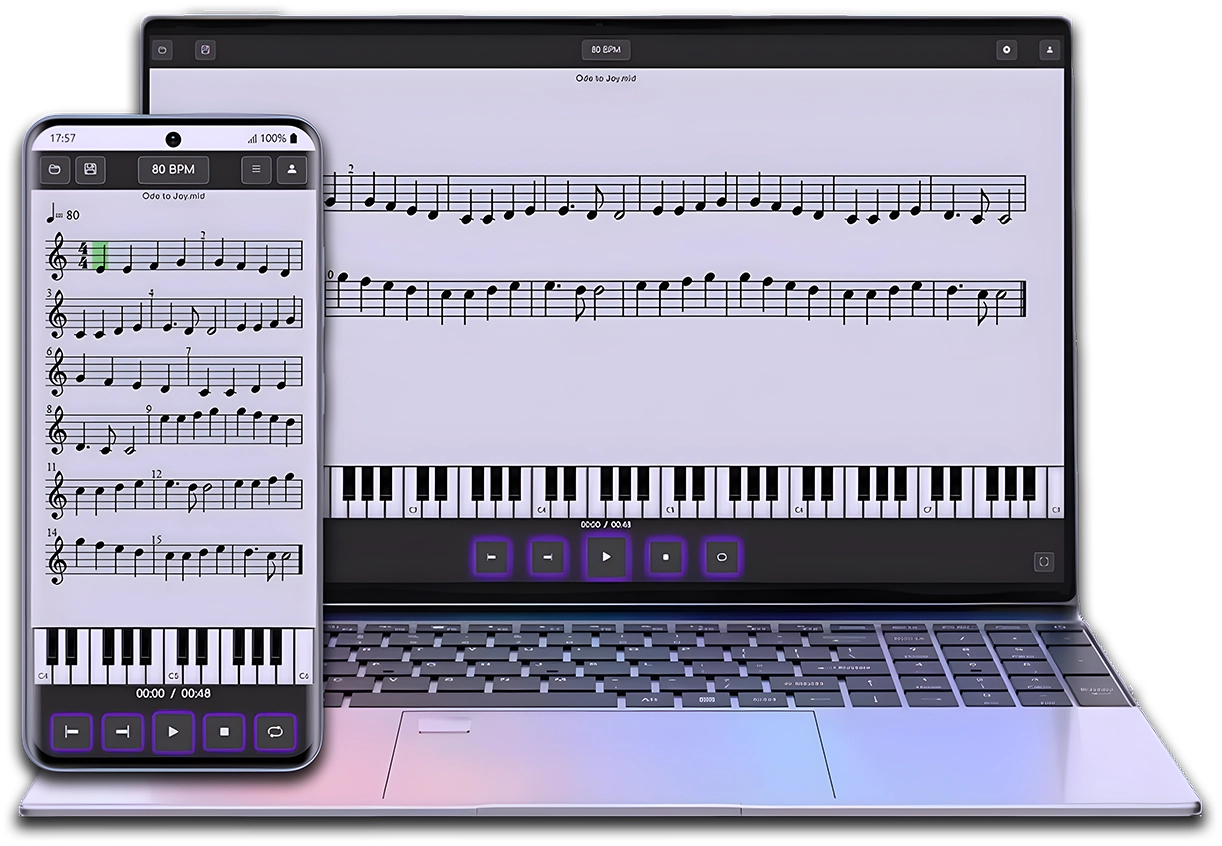
MIDI & MusicXML Player
Now that you know MuseScore, practice your scores easily with the Clave de Mi Player.
After creating your score in MuseScore, open it in MIDI & MusicXML Player to listen to it, study, and practice at your own pace from the browser or your phone.
In this lesson of the MuseTube course, we explore one of MuseScore’s most comprehensive and interesting topics: keys, key signatures, and transposition. You’ll learn how to insert and edit key signatures, use custom key signatures, understand the difference between transposing and non-transposing instruments, apply octave lines, work with enharmonics, and use transposition tools to adjust your score with precision.
🎼 How to insert and edit key signatures
From the “Key Signatures” palette you can add, change, or remove the key signature in any measure. Just click or drag a key signature onto the desired measure. The initial key signature can’t be removed, but you can change it to C major or A minor to leave it empty.
📍 Courtesy key signatures
If a key change coincides with a system break, MuseScore automatically shows a courtesy key signature at the end of the previous system. You can enable or disable it from “Format > Style > Page”, or from the measure’s “Properties” where the change occurs.
🎯 Local key signatures
You can apply a key signature to a specific staff only by holding Ctrl while dragging the key signature. This is useful when an instrument like the piano needs to have hands in different keys, or in certain contemporary compositions.
🔧 Create custom key signatures
From the “More” button in the Key Signatures palette you can create custom key signatures with sharps, flats, double accidentals, and even in non-standard positions. Once created, you can save it and reuse it in your score.
🧩 Using “courtesy naturals”
When switching between keys with different accidentals, MuseScore can show “courtesy naturals” to cancel the previous key signature. You can configure this behavior from “Format > Style > Accidentals”, choosing whether they should appear before or after the clef, or only in certain contexts.
🎺 Transposing instruments
Some instruments, like the trumpet, are pitched in keys different from the piano. MuseScore automatically adjusts the transposition and key signature of these instruments so they sound correctly. You can view or modify the transposition from “Staff/Part Properties”.
🎹 Concert pitch
By enabling the “Concert pitch” option you can view all instruments in the same key (without transposition), which makes composing and overall score reading easier. You can enable or disable it from the bottom-right of the control panel.
📈 Transposing notes and chords
From “Tools > Transpose” you can transpose a selection or the entire score:
- By semitones: Using the ↑/↓ arrows or the Transpose dialog
- By interval: Choose between perfect fifth, minor third, etc.
- Diatonically: Transpose ignoring accidentals
You can also choose whether you want to transpose chord symbols, change the key signature, or keep it.
🪄 Octave lines
“8va” lines allow a passage to be played an octave higher (or lower) without having to modify the notes. They are added from the “Lines” palette and are especially useful to avoid excessive ledger lines in low or high instruments.
♯♭ Enharmonics and respelling pitches
Use the J key to toggle between sharps and flats for a note (for example, F♯ → G♭). Also, from “Tools > Respelling Pitches”, MuseScore can automatically adjust accidentals according to the active key signature, optimizing readability.
MIDI & MusicXML Player
You have finished this lesson.
Now put it into practice with the Mi Clef Player.
Open a sample score in MIDI & MusicXML Player and discover a more visual, guided way to listen to, understand, and practice your scores.

Enjoy this course for free
and support the channel by making a donation or buying me a coffee!